
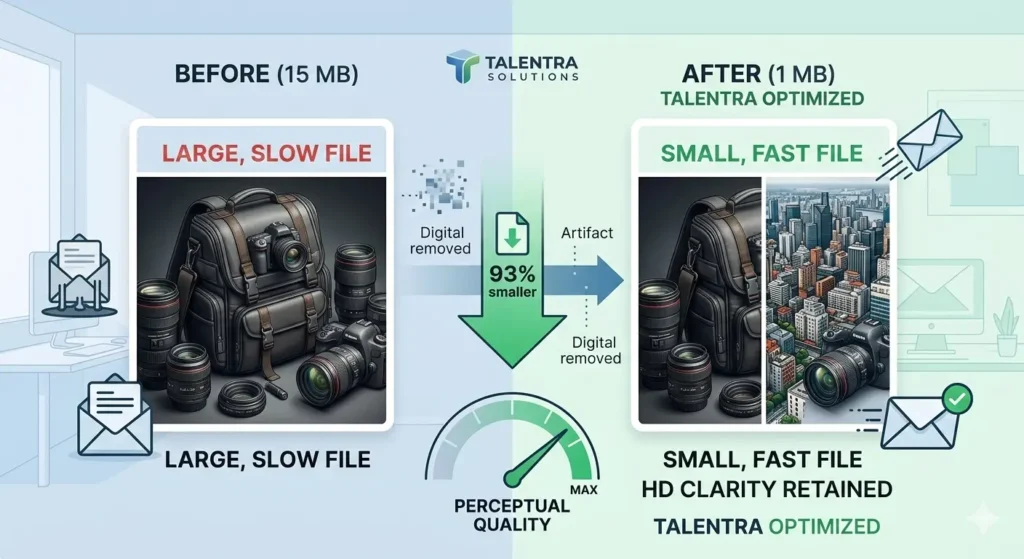
In the digital age, images are the language of communication. Whether you are a freelancer sending a portfolio to a high-ticket client, a photographer sharing proofs, or a business owner sending product shots for an ad campaign, the quality of your images represents the quality of your brand.
However, there is a persistent technical hurdle: The Email Attachment Limit.
Most major email providers, including Gmail and Outlook, still cap attachments at around 20MB to 25MB. In 2026, with high-resolution smartphone cameras and 100-megapixel mirrorless sensors becoming the norm, a single uncompressed photo can easily exceed 15MB. Try sending three of those, and your email will bounce faster than a rubber ball.
This guide will teach you the science of compression, the “Lossless vs. Lossy” debate, and how to use the Talentra Image Compressor to achieve the perfect balance of microscopic file size and crystalline visual quality.
Chapter 1: Why Does Image Size Matter in 2026?
You might think that with 5G and high-speed fiber internet, file size shouldn’t matter anymore. This is a common misconception. Here is why compression is more important now than ever:
1.1 Deliverability and Spam Filters
Email servers are programmed to protect users. Large attachments are often flagged by corporate firewalls as potential security risks or “resource hogs.” By compressing your JPEGs, you ensure your email lands in the Inbox, not the Junk folder.
1.2 Mobile User Experience
Over 70% of professional emails are now read on mobile devices. If a client is on a spotty mobile connection and your 10MB image takes 30 seconds to download, they will likely close the email before they see your work. Speed equals professionalism.
1.3 Carbon Footprint and Storage Costs
Data storage isn’t “free” for the planet. Large files require more server energy to transfer and store. By optimizing your images, you are contributing to a leaner, greener digital ecosystem.
Chapter 2: Understanding the JPEG Format
To compress an image without losing quality, you first have to understand what a JPEG actually is.
JPEG (Joint Photographic Experts Group) is a “lossy” format. This means that to make the file smaller, it intentionally throws away some data. The trick is to throw away the data that the human eye cannot see.
2.1 Chroma Subsampling
The human eye is much more sensitive to changes in brightness (Luminance) than it is to changes in color (Chroma). JPEG compression works by keeping the brightness data sharp but “averaging out” the color data in small clusters of pixels.
2.2 Artifacting: The Enemy of Quality
When you compress an image too much, you get “artifacts”—those blocky, pixelated squares usually visible in the shadows or the sky. Our goal is to find the “Magic Threshold”: the point where the file size drops significantly, but artifacts remain invisible to the naked eye.
Chapter 3: Lossy vs. Lossless Compression
When using tools like the Talentra Image Compressor, you’ll often hear these two terms.
- Lossless Compression: This is like a ZIP file. It shrinks the data by finding patterns, but when you open it, every single pixel is restored to its original state. The file size savings are usually small (10%–20%).
- Lossy Compression: This is what we use for web and email. It permanently removes “invisible” data. This can reduce file sizes by up to 80% or 90% while maintaining “perceptual” high quality.
Chapter 4: Step-by-Step Guide to Compressing for Email
If you need to send a JPEG via email right now, follow this workflow to ensure maximum quality.
Step 1: Export at the Correct Dimensions
Do not send a 6000×4000 pixel image if it’s only going to be viewed on a laptop screen.
- Recommended for Email: 1920px or 2560px on the longest side. This is plenty for 4K monitors but drastically reduces the initial weight of the file.
Step 2: Use the Talentra Solutions Image Compressor
Our tool is built on a 2026 neural-link algorithm that analyzes the textures in your photo.
- Upload: Drag and drop your JPEG into the browser.
- Analyze: The tool identifies areas of high detail (like a person’s face) and areas of low detail (like a white wall).
- Optimize: It applies heavy compression to the low-detail areas and light compression to the high-detail areas.
Step 3: Strip the Metadata (EXIF Data
Every JPEG contains hidden “tags” telling you the camera model, the GPS coordinates where the photo was taken, and even the software used to edit it. While useful for photographers, this adds “hidden weight” to the file. A professional compressor strips this data out, saving you an extra 50KB to 200KB per image.
Chapter 5: Advanced Tips for Different Image Types
Not all JPEGs are created equal. Different subjects require different compression strategies.
5.1 Portraits and Skin Tones
Skin tones are very sensitive to “banding”—when smooth gradients of color look like stripes. When compressing portraits for email, keep your quality slider at “High” (around 80%). The Talentra tool is specifically tuned to protect skin textures.
5.2 Text-Heavy Images (Infographics)
If your JPEG contains text (like an exported flyer), compression can make the letters look “fuzzy.”
- Pro Tip: In these cases, it is often better to use a PDF or a PNG, but if you must use JPEG, keep the compression moderate to maintain legibility.
5.3 Nature and Landscapes
Landscapes with lots of fine detail (leaves, grass, sand) are hard to compress. These files will naturally be larger than a photo of a clear blue sky. Don’t force a landscape photo to be as small as a portrait; give it the “room” it needs to stay sharp.
Chapter 6: Testing Your Results
Before you send that high-stakes email, perform the “Zoom Test.”
- Open your compressed image.
- Zoom in to 100% (Actual Size).
- Look at the edges of objects. Do they look “crunchy” or “shimmery”? If not, your compression was successful.
- Check the file size. Is it under 1MB? If yes, you are ready for email.
Chapter 7: Common Myths About Image Compression
Myth #1: “Saving a JPEG multiple times doesn’t hurt it.”
- Truth: This is called “Digital Rot.” Every time you open a JPEG, edit it, and save it again, the lossy algorithm runs again, degrading the quality. Always compress from the original file.
Myth #2: “Higher resolution always means better quality.”
- Truth: A 4K image that is heavily compressed will look much worse than a 1080p image that is lightly compressed. Balance is key.
Myth #3: “Email automatically compresses images for you.”
- Truth: Some clients (like Apple Mail) ask if you want to resize, but many (like Gmail) simply try to send the raw file. If the file is too big, it just fails. Never rely on the email client to do the work for you.
Conclusion: Efficiency is the New Standard
In 2026, being “tech-savvy” means knowing how to optimize your digital presence. Sending a 25MB attachment is seen as a digital faux pas—it’s the equivalent of shouting in a quiet room.
By using the Talentra Solutions Image Compressor, you aren’t just making a file smaller; you are ensuring your communication is fast, professional, and accessible.
Ready to optimize your workflow?
Stop guessing and start compressing. Use our Free Image Compressor today and see the difference that “Lossless-Quality” compression can make for your business.